Installing the Cangjie Toolchain
One of the essential tools used in developing a Cangjie program is the Cangjie compiler, which can compile the Cangjie source code into an executable binary file. The auxiliary tools of this modern programming language offer far beyond this. Cangjie provides developers with a comprehensive development toolchain, including the compiler, debugger, package manager, static checking tool, formatting tool, and coverage measurement tool. It also offers user-friendly installation and usage modes, with functions available right out of the box.
Currently, the Cangjie toolchain has been adapted to some Linux, macOS and Windows versions. However, a complete function test has been performed only on some Linux distributions. For details, see Installation and Support of the Tool Chain for Linux. The function integrity of the Cangjie toolchain is not guaranteed on platforms that have not been fully tested. In addition, the Cangjie compiler on Windows is implemented based on MinGW. This indicates that some functions may be unavailable compared to those on Linux. For details about the differences, see the release notes of the corresponding version.
Linux / macOS
Environment Setup
Linux
The environment requirements for installing the Cangjie toolchain on Linux are as follows:
| Architecture | Environment Requirements |
|---|---|
| x86_64 | glibc 2.22, Linux Kernel 4.12 or later, and libstdc++ 6.0.24 or later |
| aarch64 | glibc 2.27, Linux Kernel 4.15 or later, and libstdc++ 6.0.24 or later |
In addition, you need to install the following dependencies for Ubuntu 18.04:
$ apt-get install binutils libc-dev libc++-dev libgcc-7-dev
For details about the dependency installation commands of Linux distributions, see Installation and Support of the Tool Chain for Linux in the appendix.
The Cangjie toolchain also depends on the OpenSSL 3 component, which may fail to be installed from the default software sources of the preceding distributions and require manual installation. For details, see Installation and Support of the Tool Chain for Linux.
macOS
The macOS edition of the Cangjie toolchain can run on macOS 12.0 or later.
Before using the macOS edition, install the dependency software packages by running the following command:
$ brew install libffi
Installation Guide
Go to the Cangjie official website and download the installation package that matches your platform architecture.
cangjie-sdk-linux-x64-x.y.z.tar.gz: Cangjie toolchain for x86_64 Linuxcangjie-sdk-linux-aarch64-x.y.z.tar.gz: Cangjie toolchain for AArch64 Linuxcangjie-sdk-mac-x64-x.y.z.tar.gz: macOS edition of the Cangjie toolchain applicable to x86_64cangjie-sdk-mac-aarch64-x.y.z.tar.gz: macOS edition of the Cangjie toolchain applicable to aarch64/arm64
Assume that cangjie-sdk-linux-x64-x.y.z.tar.gz is selected. After downloading the package to the local PC, decompress it.
tar xvf cangjie-sdk-linux-x64-x.y.z.tar.gz
After the decompression is complete, the cangjie directory that stores all contents of the Cangjie toolchain is displayed in the working directory. Install and configure the toolchain.
source cangjie/envsetup.sh
Check whether the installation is successful.
cjc -v
cjc is the executable file name of the Cangjie compiler. If the compiler version is returned in the command output, the Cangjie toolchain has been successfully installed. It is worth noting that the envsetup.sh script configures the environment variables related to the toolchain only in the current shell environment. Therefore, the Cangjie toolchain is available only in the shell environment. If you open a new shell environment, run the envsetup.sh script again to configure the environment.
To make the environment variable configuration of the Cangjie toolchain automatically take effect during shell startup, add the following command to the end of the shell initialization configuration file such as $HOME/.bashrc or $HOME/.zshrc, depending on the shell type:
# Assume that the Cangjie installation package is extracted to /home/user/cangjie.
source /home/user/cangjie/envsetup.sh  # Absolute path of the envsetup.sh file
After the configuration is complete, the Cangjie compilation toolchain will be ready for use when the shell starts.
Uninstallation and Update
To uninstall the Cangjie toolchain, delete the installation package directory of the Cangjie toolchain and remove the preceding environment variables on Linux and macOS. A simple solution is to open a new shell environment.
$ rm -rf <path>/<to>/cangjie
To update the Cangjie toolchain, uninstall the current version and then install the latest Cangjie toolchain according to the preceding instructions.
Windows
This section describes how to install the Cangjie toolchain on Windows 10.
Installation Guide
For Windows users, Cangjie provides exe and zip installation packages. Go to the Cangjie website and download the Windows-based installation package that matches your platform architecture.
-
If you choose an installation package in
exeformat (for example,cangjie-sdk-windows-x64-x.y.z.exe), execute it directly and follow the installation wizard to install Cangjie. -
If you choose an installation package in
zipformat (for example,cangjie-sdk-windows-x64-x.y.z.zip), decompress it to a proper directory.In the installation package, there are three installation scripts in different formats:envsetup.bat,envsetup.ps1, andenvsetup.sh. Select one of them based on your preferences and environment configurations. -
If Windows Command Prompt (CMD) is deployed, run the following command:
path\to\cangjie\envsetup.bat -
If PowerShell is deployed, run the following command:
. path\to\cangjie\envsetup.ps1 -
If the MSYS shell or Bash is deployed, run the following command:
source path/to/cangjie/envsetup.sh
To check whether the installation is successful, run the cjc -v command in the corresponding environment. If the Cangjie compiler version is output, the Cangjie toolchain has been successfully installed.
NOTE
The installation of the
ZIPinstallation package and execution script is similar to that on Linux. The environment variables configured by theenvsetupscript are valid only in the current CLI. If you open a new CLI, run theenvsetupscript again to configure the environment.
For the environment variables of the Cangjie toolchain to take effect automatically when the command prompt or the terminal is started, perform the following operations:
-
If the bash environment is used, perform the following steps:
Append the following command to the
$HOME/.bashrcinitialization configuration file ($HOMEindicates the path of the current user directory):# Assume that the Cangjie installation package is decompressed in /home/user/cangjie: source /home/user/cangjie/envsetup.sh # Absolute path of envsetup.sh.After the configuration is complete, the Cangjie compilation toolchain can be used after the bash is started.
-
If the Windows command prompt (CMD), PowerShell, or other environment is used, perform the following steps:
-
In the Windows search box, search for "View advanced system settings" and open the corresponding window.
-
Click Environment Variables.
-
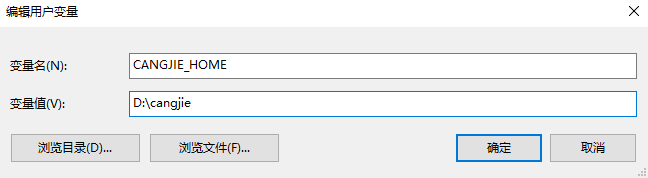
Perform the following operations to configure the CANGJIE_HOME variable:
-
Check whether the CANGJIE_HOME variable exists in User variables for the current user or System variables for all users. If not, click New and enter
CANGJIE_HOMEin the Variable Name field. If so, Cangjie may have been configured in the environment. If you want to overwrite the original configuration by reconfiguring it for the current Cangjie version and , click Edit to open the Edit System Variable window. -
In the Variable Value field, enter the decompression path of the Cangjie installation package. If the path already exists, use a new path to overwrite the original path. For example, if the Cangjie installation package is decompressed to
D:\cangjie, enterD:\cangjie. -
After the configuration is complete, the Edit User Variable or Edit System Variable window is shown as follows. Confirm that the path is correctly configured and click OK.
-
-
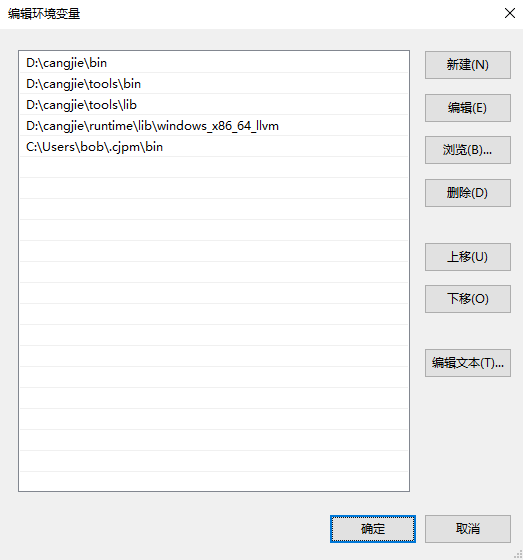
Perform the following operations to configure the Path variable:
-
In User variables for the current user or System variables for all users, select the Path variable and click Edit to open the Edit Environment Variable window.
-
Click New and enter
%CANGJIE_HOME%\bin,%CANGJIE_HOME%\tools\bin,%CANGJIE_HOME%\tools\lib, and%CANGJIE_HOME%\runtime\lib\windows_x86_64_llvm. (%CANGJIE_HOME%is the decompression path of the Cangjie installation package.) For example, if the repository installation package is decompressed inD:\cangjie, the new environment variables areD:\cangjie\bin,D:\cangjie\tools\bin,D:\cangjie\tools\lib, andD:\cangjie\runtime\lib\windows_x86_64_llvm. -
Click New, enter the directory path of the current user, and add
.cjpm\binto the end of the path. This method is applicable only to the current user. For example, if the user path isC:\Users\bob, enterC:\Users\bob\.cjpm\bin. -
After the configuration is complete, you can view the configured path in the Edit Environment Variables window, as shown in the following figure. Confirm that the path is correctly configured and click OK.
-
-
Click OK to exit the Environment Variables window.
-
Click OK for the settings to take effect.
NOTE
After the setting is complete, you may need to restart the CLI or the system for the settings to take effect.
After the configuration is complete, the Cangjie compilation toolchain can be used after the Windows command prompt (CMD) or PowerShell is started.
-
Uninstallation and Update
-
If the
exeinstallation package is used, run the executable fileunins000.exein the Cangjie installation directory and follow the uninstallation wizard to uninstall Cangjie. -
If the
zipinstallation package is used, delete the directory storing the Cangjie toolchain installation package and remove the preceding environment variables (if any) to uninstall Cangjie.
To update the Cangjie toolchain, uninstall the current version and then install the latest Cangjie toolchain according to the preceding instructions.