Creating a Cangjie Project
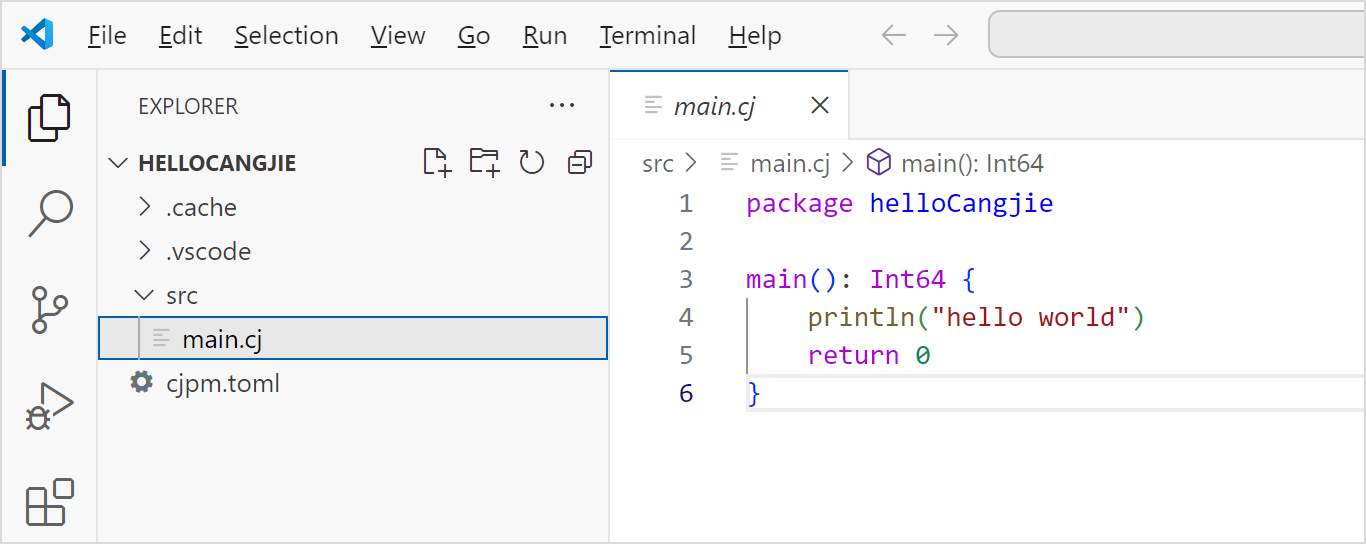
The following figure shows the directory structure of a Cangjie project.
Project_name: user-defined name

├── src: code directory

│    └── main.cj: source code file

└── cjpm.toml: default configuration file cjpm.toml
Using the VSCode Command Palette
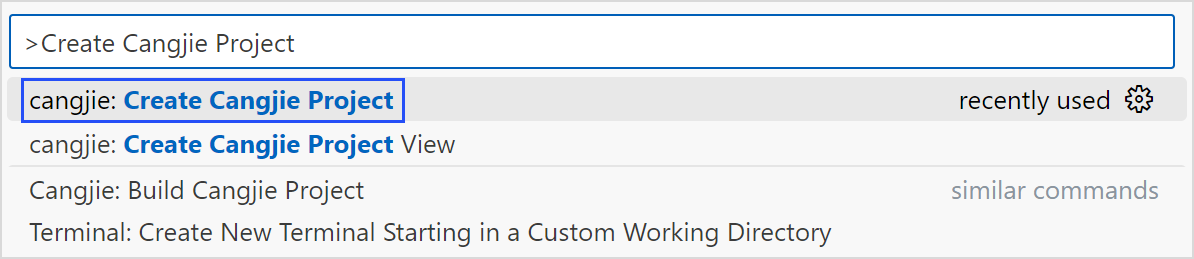
In VSCode, press F1 or press Ctrl + Shift + P (Command + Shift + P for macOS) to open the command palette. Perform the following steps to create a Cangjie project.
Step 1: Select the command for creating a Cangjie project.
Step 2: Select Cangjie backend.

Step 3: Select a project template.

Step 4: Select a project path.

Step 5: Enter the project name.
Select a path for storing the project and enter the project name.
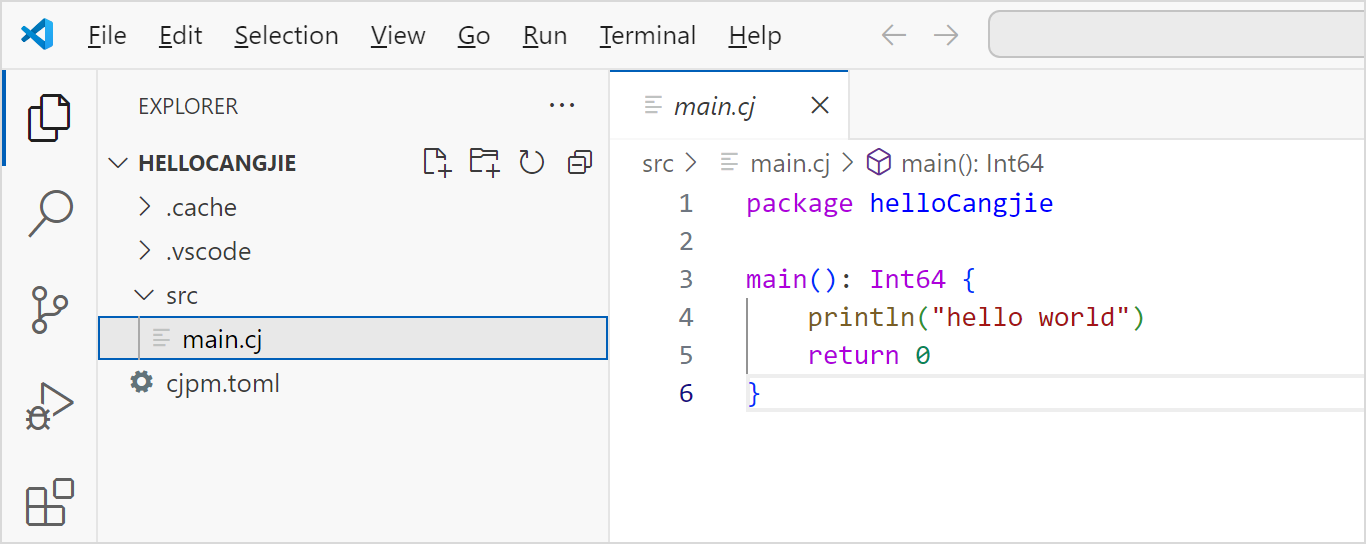
Step 6: Create the project and open it.
Using a Visualization View
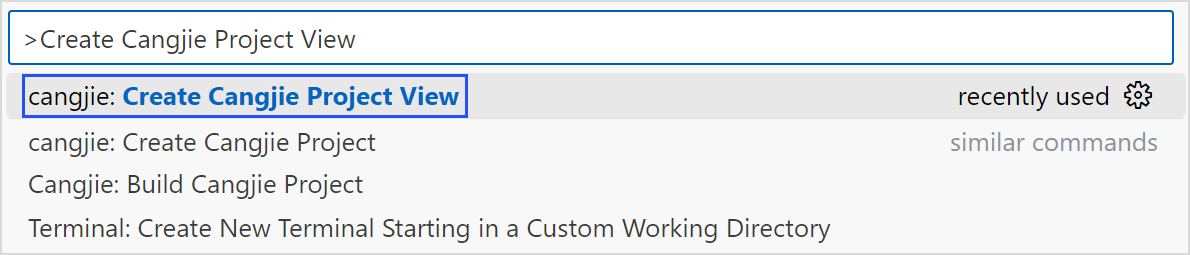
In VSCode, press F1 or press Ctrl + Shift + P (Command + Shift + P for macOS) to open the command palette. Perform the following steps to create a Cangjie project.
Step 1: Select the command for creating a Cangjie visualization project.
Step 2: Open the Create New Cangjie Project page.
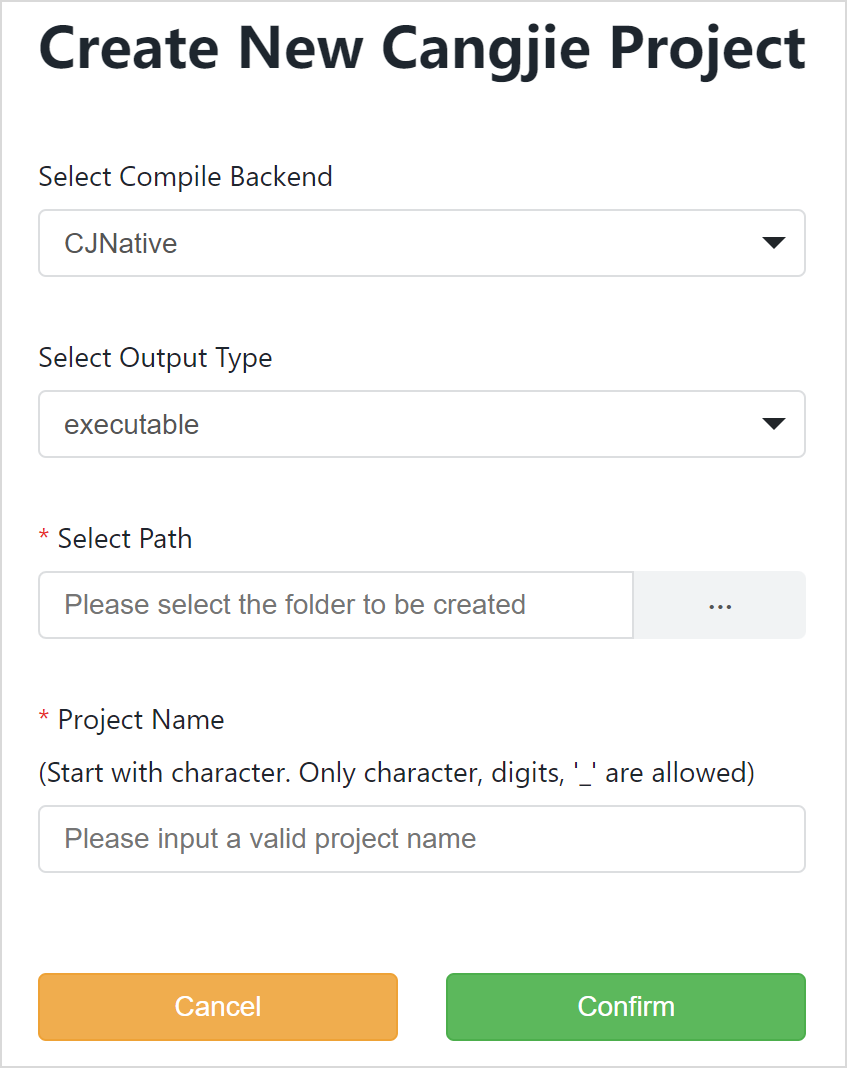
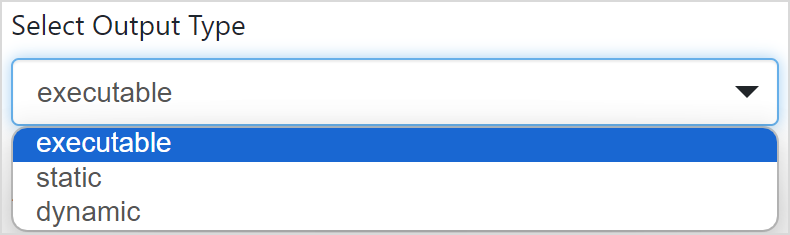
Step 3: Select a project template.
Step 4: Select a project path.

Step 5: Enter the project name.
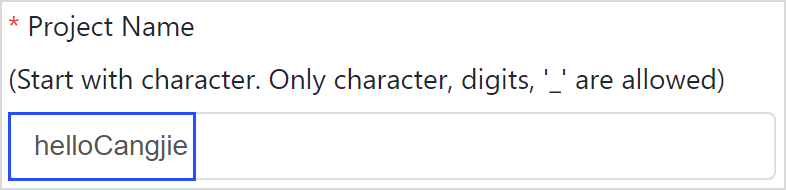
Step 6: Click Confirm to create and open the project.