Command Line Tools Integration
Formatting
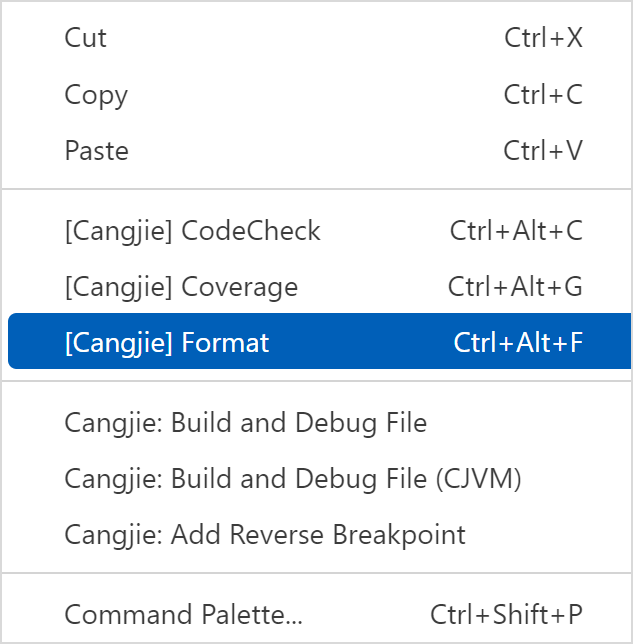
To format a Cangjie file, right-click the code editing area in VSCode and choose [Cangjie] Format from the shortcut menu or press Ctrl + Alt + F to run the formatting command, as shown in the following figure.
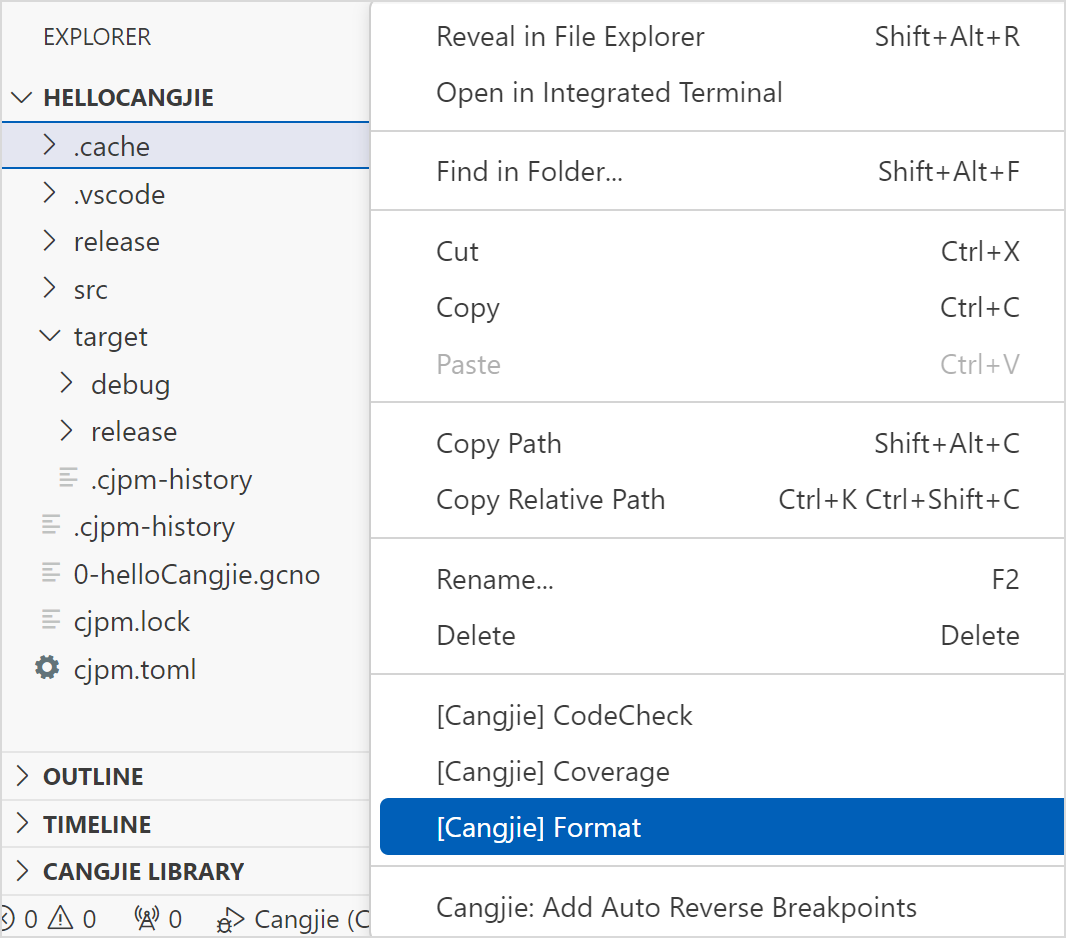
For the Cangjie project, you can select a file in the resource manager of VSCode or right-click a folder and choose [Cangjie] Format from the shortcut menu to format the selected file or folder, as shown in the following figure.
Static Check
The IDE utilizes cjlint, a static check tool, to conduct static code checks. These checks can identify code that does not comply with programming specifications, helping developers detect any vulnerabilities in code and ensuring that the Cangjie code meets clean source standards.
NOTE
Currently, static check can only check all Cangjie files in the src folder of the project directory.
You can start static check in two ways.
-
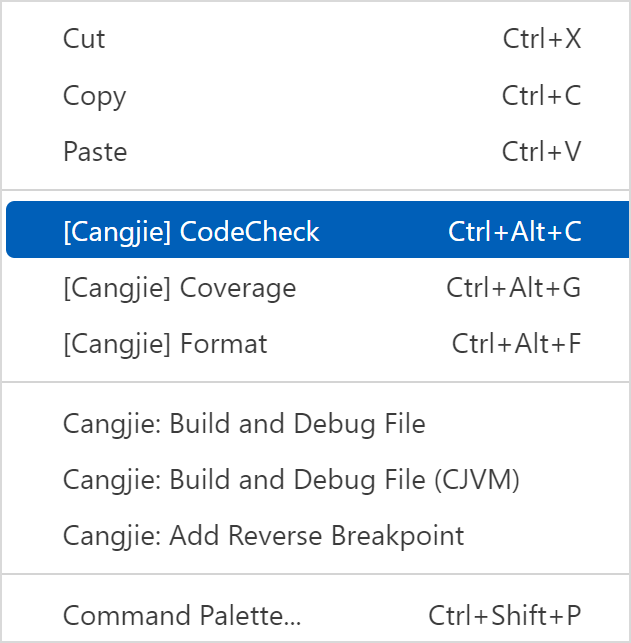
Right-click in the code editing area of VSCode and choose [Cangjie] CodeCheck from the shortcut menu, or press Ctrl + Alt + C to run the static check command, as shown in the following figure.
-
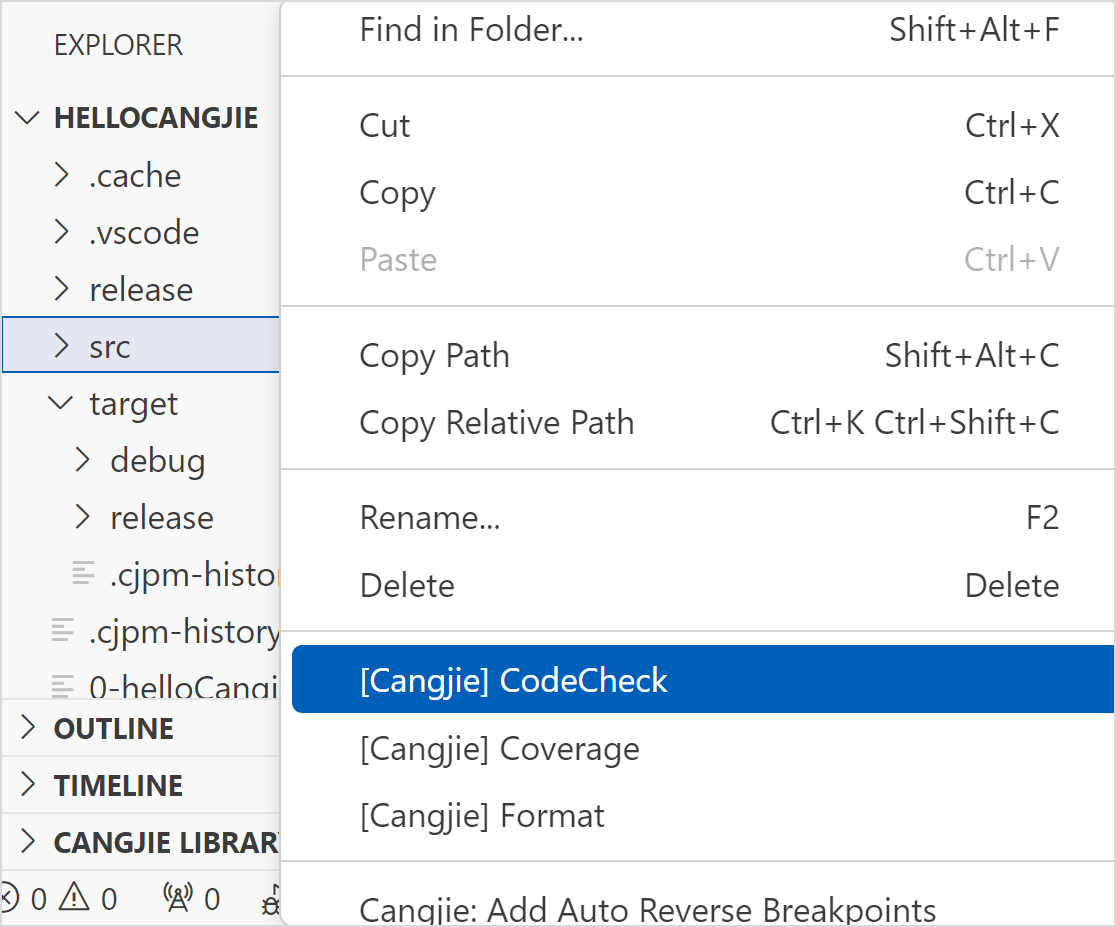
Right-click in the resource manager of VSCode and choose [Cangjie] CodeCheck from the shortcut menu to run the static check command, as shown in the following figure.
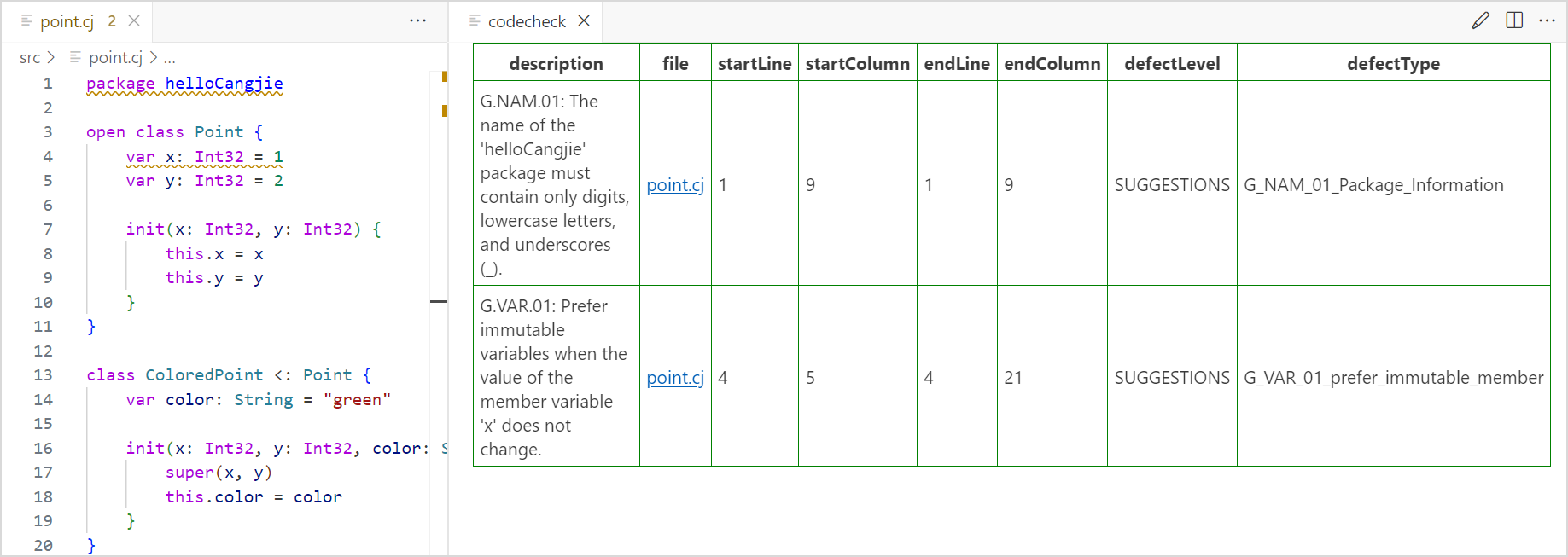
After the static check command is executed, any non-compliance with coding specifications will be displayed in the table on the right. You can click the file links in the table to quickly navigate to the specific rows and columns in the files where the problematic code is located.
Currently, static check can be automatically triggered after code is saved.
You can click the gear icon in the lower left corner, choose Settings, enter cangjie in the search box, and select the Check On Save option to enable automatic static check, as follows.

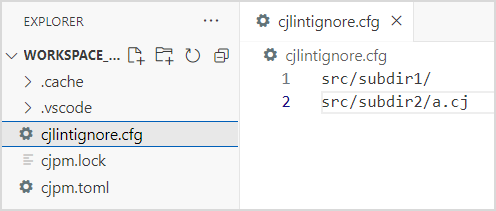
After automatic static check is enabled, the configuration file cjlintignore.cfg will be generated in the root directory of the project. The configuration file supports three ignore modes: ignore files, ignore folders, and ignore regular expressions. Each configuration item is a relative path (regular expressions are supported) with respect to the directory where the configuration file is located. The path does not need to be enclosed in double quotation marks. The automatic static check can ignore the Cangjie files that match the configuration items, and no alarm is generated for these files. For example, if cjlintignore.cfg contains the following configurations, the src/subdir1/ directory and src/subdir2/a.cj file are ignored during the automatic static check.
Coverage Statistics
The coverage statistics function is used to generate the coverage report of the Cangjie language program.
Note:
If the selected folder does not contain a Cangjie file, no coverage report is generated.
You can start coverage statistics in two ways.
-
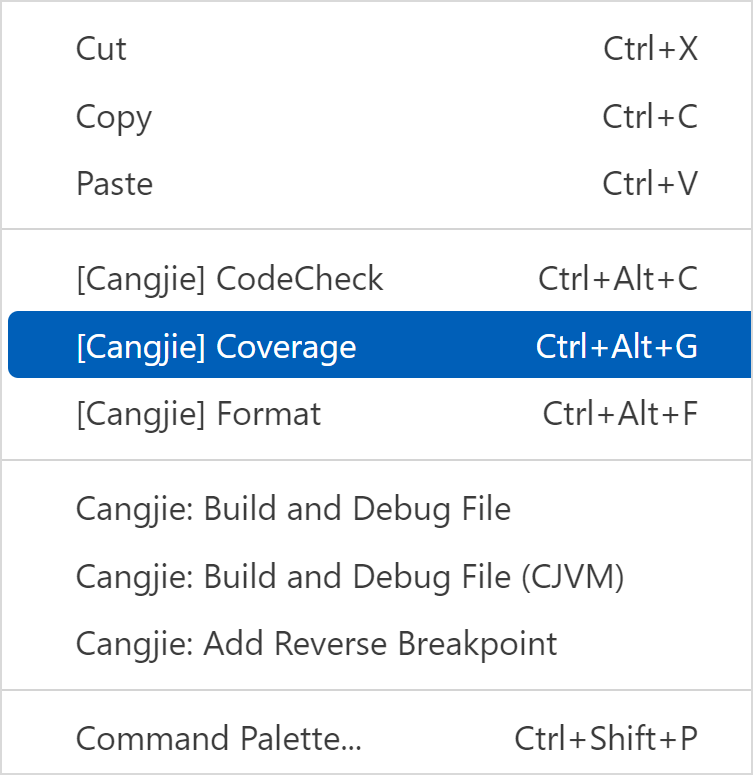
Right-click the code editing area of VSCode and choose [Cangjie] Coverage from the shortcut menu, or press Ctrl + Alt + G to run the command for generating the coverage report of the current Cangjie file, as shown in the following figure.
-
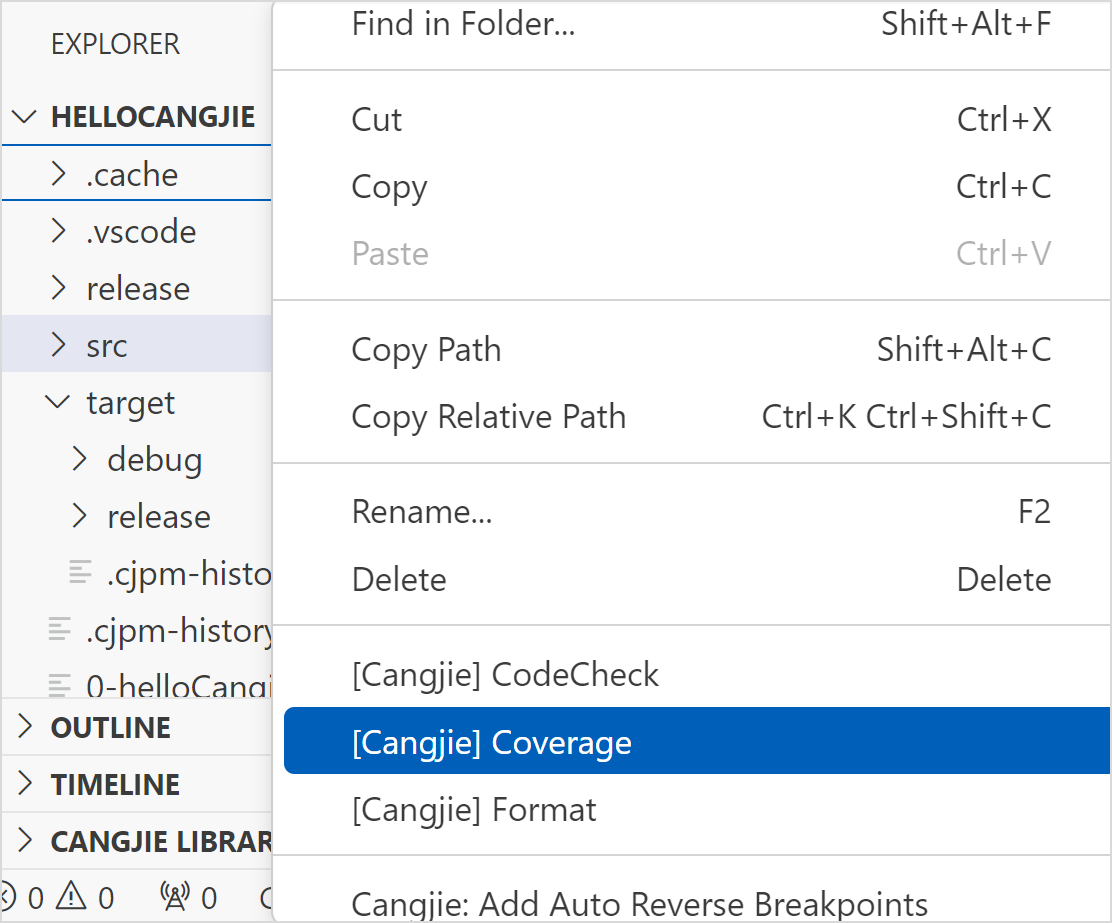
In the resource manager of VSCode, select a file or right-click a folder and choose [Cangjie] Coverage from the shortcut menu to generate a coverage report for the selected file or folder, as shown in the following figure.
On the generated coverage report page, you can click the file name to view the coverage details.