Language Service
The language service tool provides the following functions for developers: syntax highlight, autocomplete, definition redirection, reference search, error diagnosis, selection highlight, floating prompt, signature help, and renaming.
NOTE
- Project root directory (PROJECTROOT): The Cangjie language service plug-in uses the directory currently opened by the developer as PROJECTROOT. It offers language service support specifically for Cangjie source code within this directory.
- Module naming: If a module name is not explicitly specified, it will default to the directory name indicated by PROJECTROOT, simplifying the process of importing packages from the src directory.
- Scope of supported source code: The source code located in PROJECTROOT/src is known as Cangjie source code within src (language service is provided). All other source code within PROJECTROOT, excluding Cangjie source code within src, is collectively referred to as Cangjie source code not within src (language service is also available for this code). Source code outside PROJECTROOT is classified as external source code (language service is not supported for this code).
- Import capabilities: Each directory in the Cangjie source code not within src is treated as a package. The declaration of the package name and compilation mode of the package are the same as those of the top-level package (default) for Cangjie source code within src. Cangjie source code not within src can import packages from standard libraries and custom packages from Cangjie source code within src. However, packages in Cangjie source code not within src cannot be imported to other packages.
- Dependencies of macro expansion: The Cangjie language service relies on a dynamic library of macros for macro expansion. When using custom macro expansion code, you will need to compile a dynamic library before starting the language service.
Code Highlight
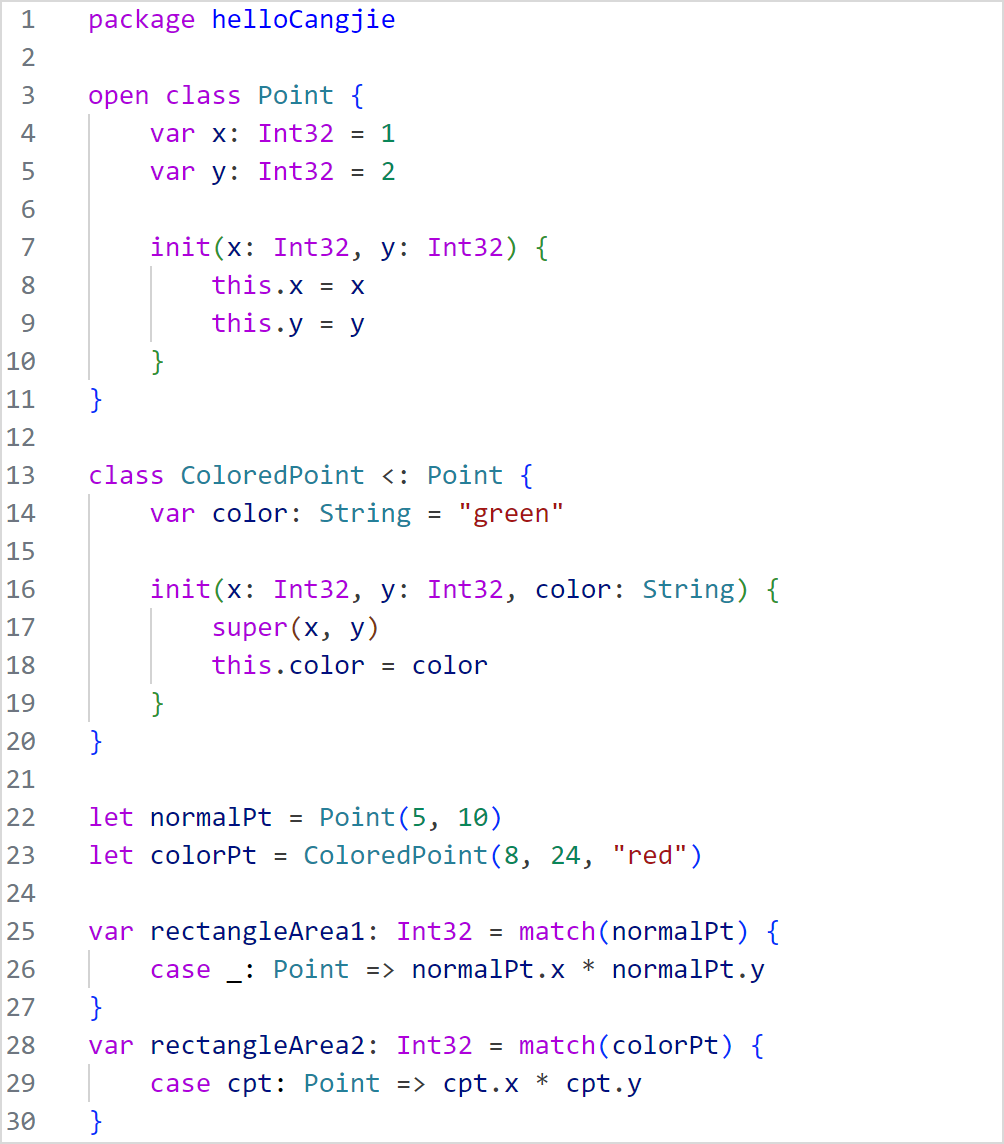
Open the .cj file in the Cangjie project in VSCode. The code is highlighted. Different themes of VSCode are highlighted in different colors. Operators, classes, comments, functions, keywords, numbers, package names, strings, and variables can be highlighted.
Autocomplete
Use VSCode to open the .cj file in the Cangjie project and enter a keyword, variable, or period (.). The candidate content is displayed on the right of the cursor. Use the up and down arrow keys to quickly select the desired content (you need to switch to the default input method), and press Enter or Tab to complete the content.
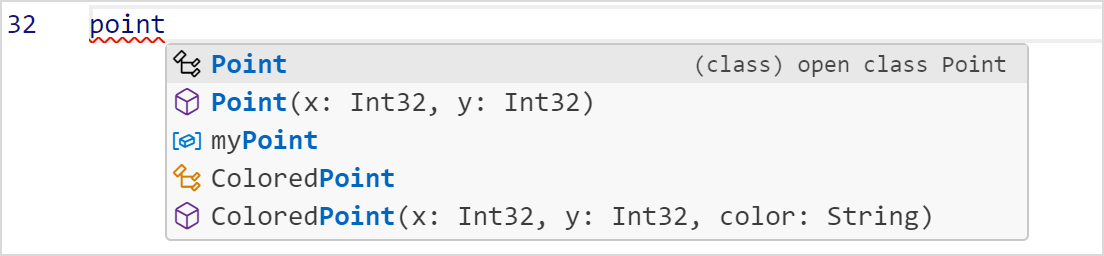

Modular supplement is provided for functions with parameters or generics. That is, when a function has parameters or generics, parameter formatting completion is displayed after you select function completion, as shown in the following figure. After filling in the value, press Tab to switch to the next parameter until the modular completion is complete, or press Esc to exit the selected module in advance.

Definition Jump
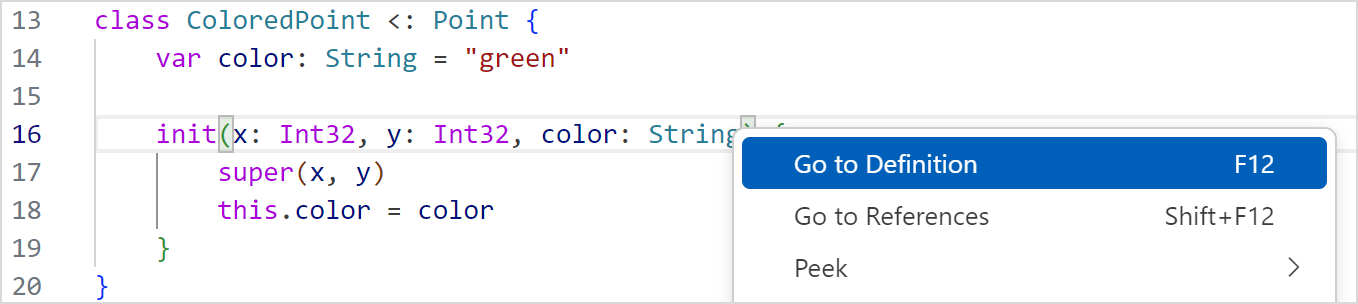
Open the .cj file in the Cangjie project in VSCode, hover the mouse pointer over the target, press Ctrl, and click the left mouse button to trigger the definition jump; or right-click the target symbol and choose Go to Definition from the shortcut menu to execute the definition jump; or press F12 to execute the definition jump.
NOTE
If definition jump is used at a symbol, you are redirected to the symbol definition. Cross-file jump is supported. If definition jump is used at the symbol definition, and the symbol has not been referenced, the cursor jumps to the left of the symbol. If a symbol is referenced elsewhere, a reference lookup is triggered.
Cross-Language Redirection
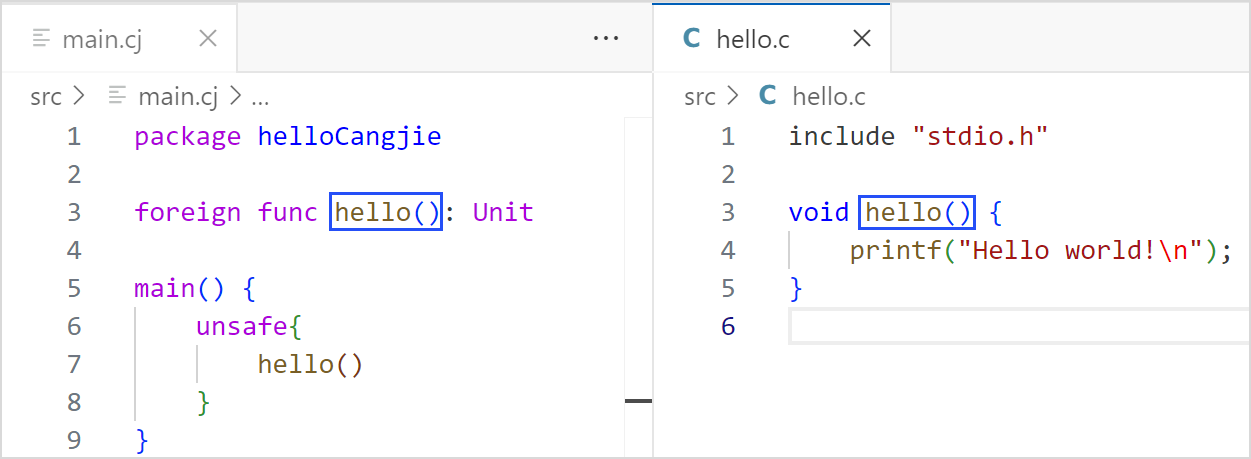
The language service plug-in supports the redirection from Cangjie language to C language. You can open the .cj file in the Cangjie project in VSCode, hover the mouse pointer over the Cangjie interoperability function, press Ctrl, and click the left mouse button to trigger the definition jump; or right-click the target symbol and choose Go to Definition from the shortcut menu; or press F12 to perform the definition jump.
Prerequisites
- Huawei-developed C++ plug-in is installed on the localhost.
- The directory for storing the C language source code to be redirected to is set on the Cangjie plug-in.
- The build folder is in the current project to store the compile_commands.json file (which can be generated by running the CMake command) for creating the index file of the specified folder.
Jump Effect
The foreign function searches for the corresponding C language function in the directory set by the developer. If the function is found, the function location in the C language source code is displayed. Except for the preceding scenario, the original definition redirection of the plug-in is retained.
Search for Reference
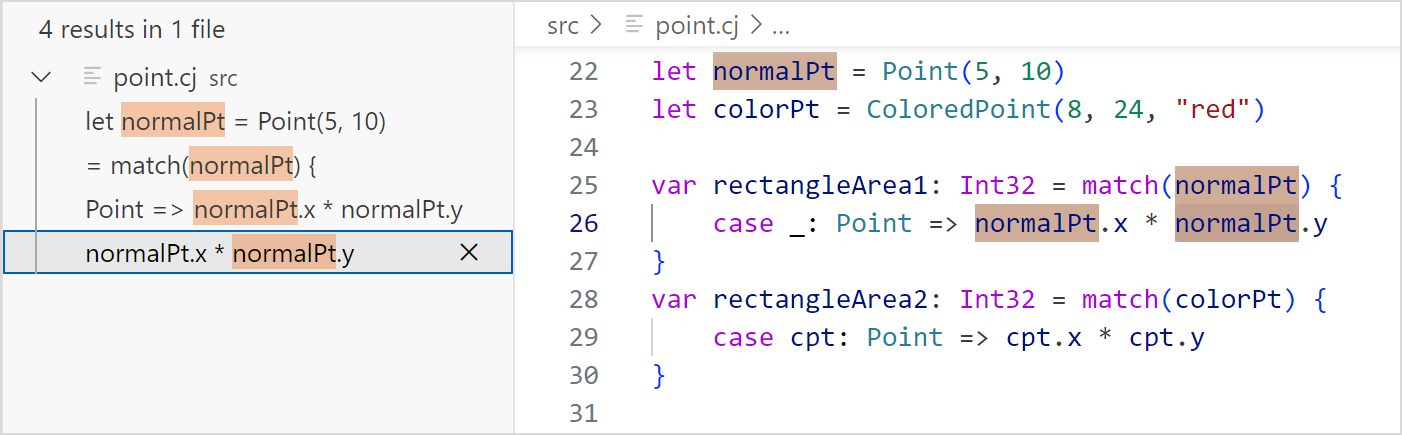
You can open the .cj file in the Cangjie project in VSCode, right-click the target symbol, and choose Find All References from the shortcut menu to preview the symbol reference. You can click a preview item to go to the corresponding reference.
Error Diagnosis
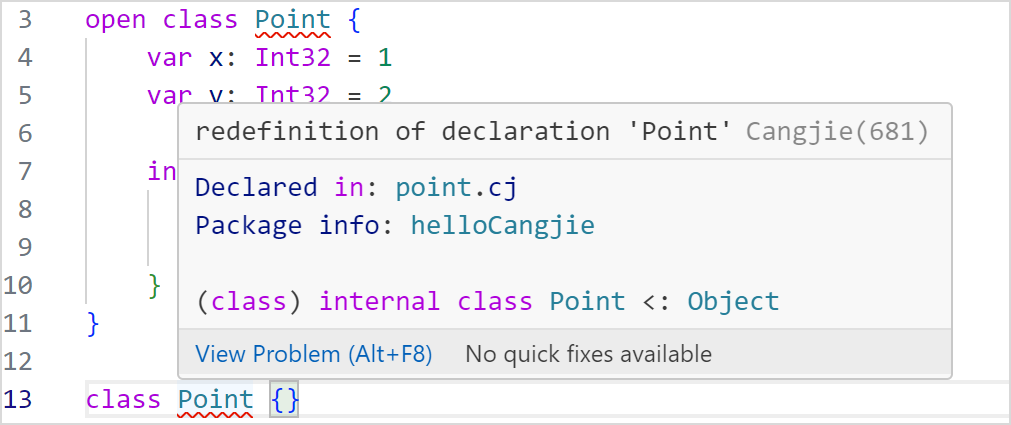
You can open the .cj file in the Cangjie project in VSCode. If the source code file contains code that does not comply with Cangjie syntax or semantic rules, a red wavy underline is displayed in the related code segment, as shown in the following figure. When the cursor hovers over the code segment, an error message is displayed. After modification, the error is automatically cleared.
Selection Highlight
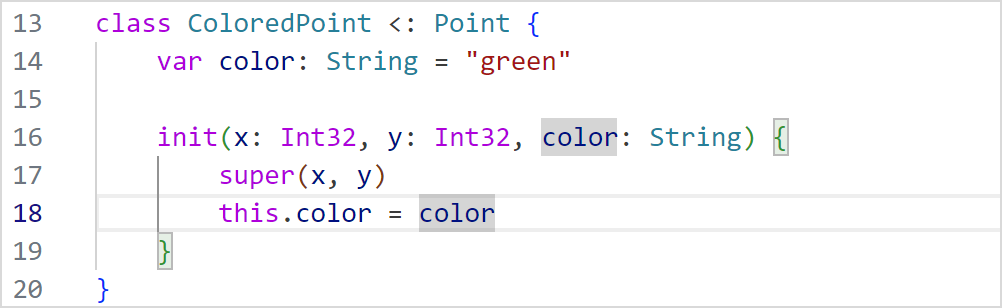
You can open the .cj file in the Cangjie project in VSCode. When you move the cursor to a variable or function name, the declaration and usage of the variable in the current file are highlighted.
Floating Tips
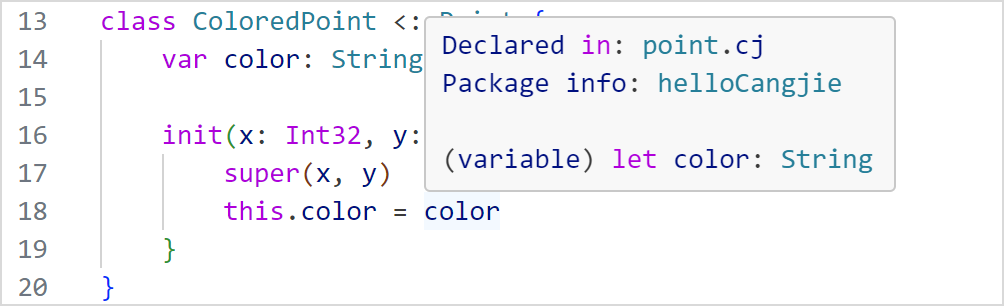
You can open the .cj file in the Cangjie project in VSCode. When the cursor hovers over a variable, the type information is displayed.
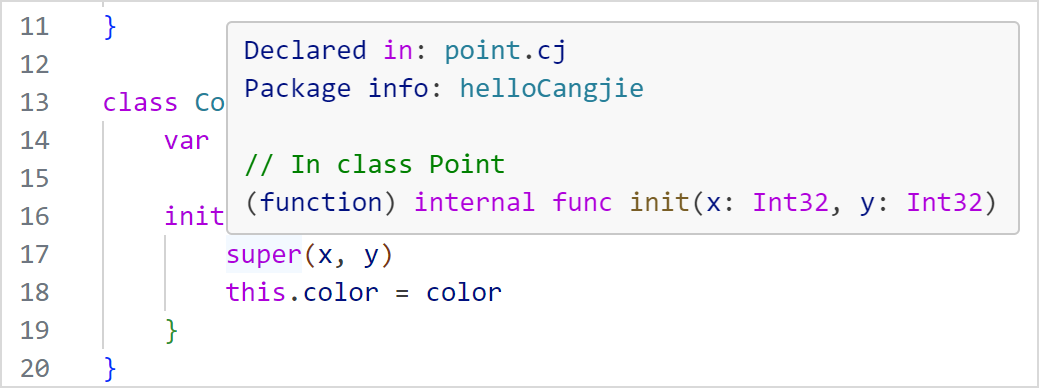
When the cursor hovers over a function name, the function prototype is displayed.
Definition Search
You can open the .cj file in the Cangjie project in VSCode, press Ctrl + T, and enter the symbol definition name in the search box that is displayed. The search result is displayed. You can click an item in the search result to go to the corresponding definition location.
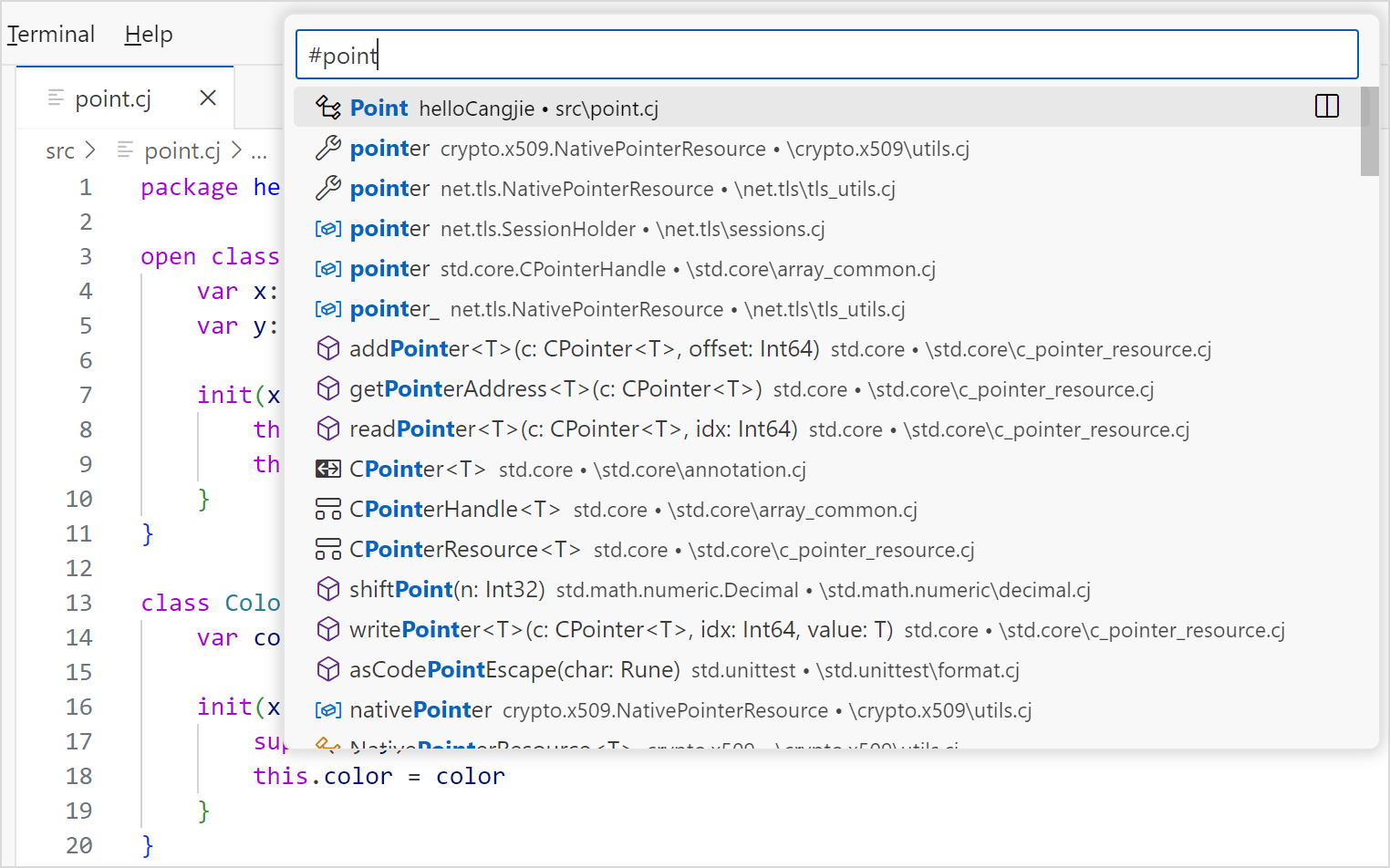
Currently, the following definition types can be searched: class, interface, enum, struct, typealias, toplevel function, toplevel variable, prop, enum constructor, member function, and member variable.
Rename
You can open the .cj file in the Cangjie project in VSCode, right-click the name to be modified, and choose Rename Symbol from the shortcut menu or press F2 to open the rename edit box.
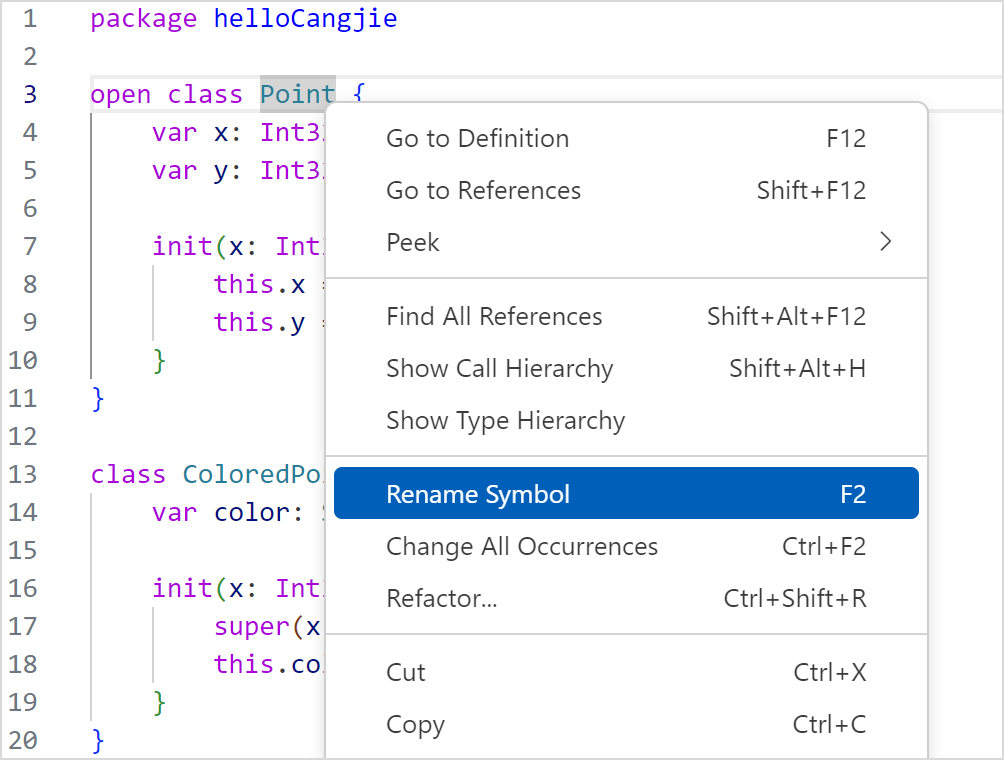
After editing, you can press Enter to complete the renaming.
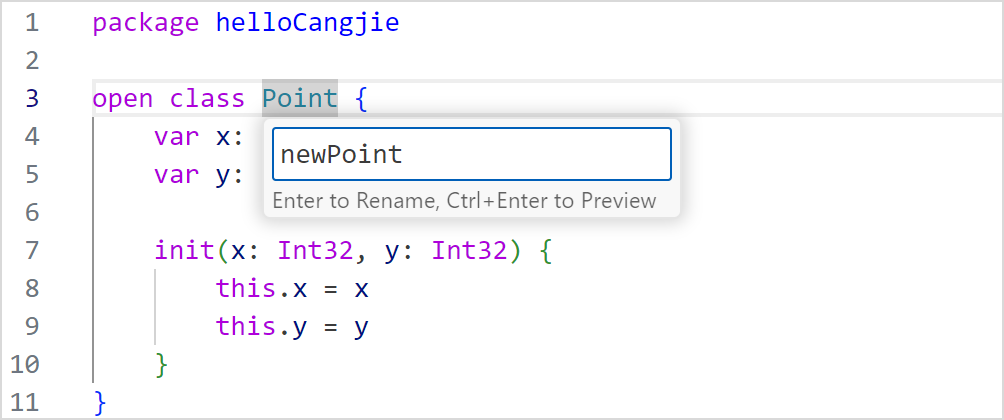
Currently, the following types can be renamed: class, interface, enum, struct, func, type, generic, variable, and custom macro.
Outline View Display
You can open the .cj file in the Cangjie project in VSCode. The outline of the current file is displayed in the OUTLINE view on the left. Currently, a two-layer structure is supported. The first layer is the declarations defined in toplevel, and the second layer is the constructors and members.
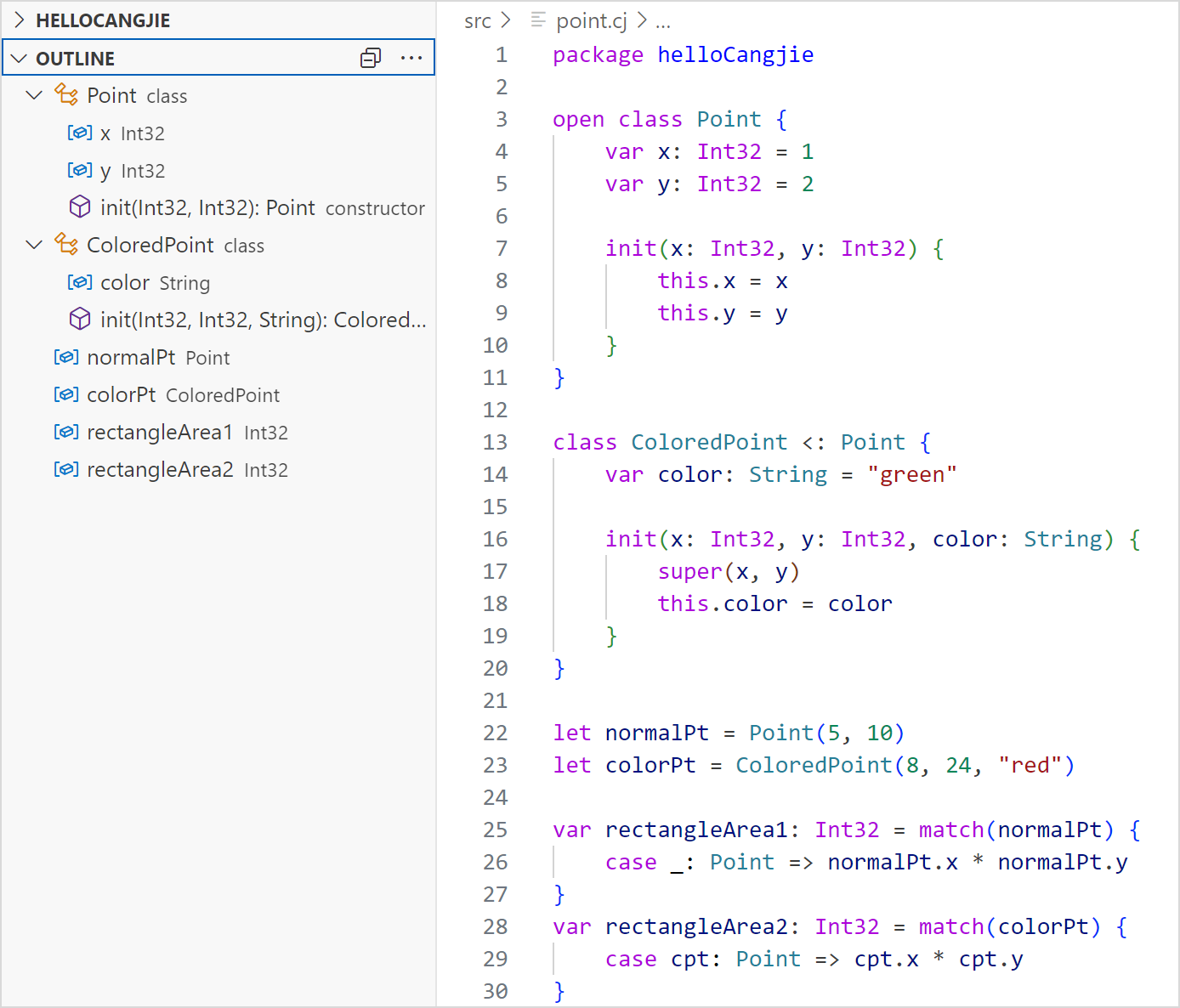
Currently, the following types can be displayed in the outline view: class, interface, enum, struct, typealias, toplevel function, toplevel variable, prop, enum constructor, member function, and member variable.
Breadcrumb Navigation
You can open any .cj file in the Cangjie project in VSCode, move the cursor to a symbol, and click the breadcrumb navigation icon. The current location of the symbol and the path of the symbol in the entire project are displayed.
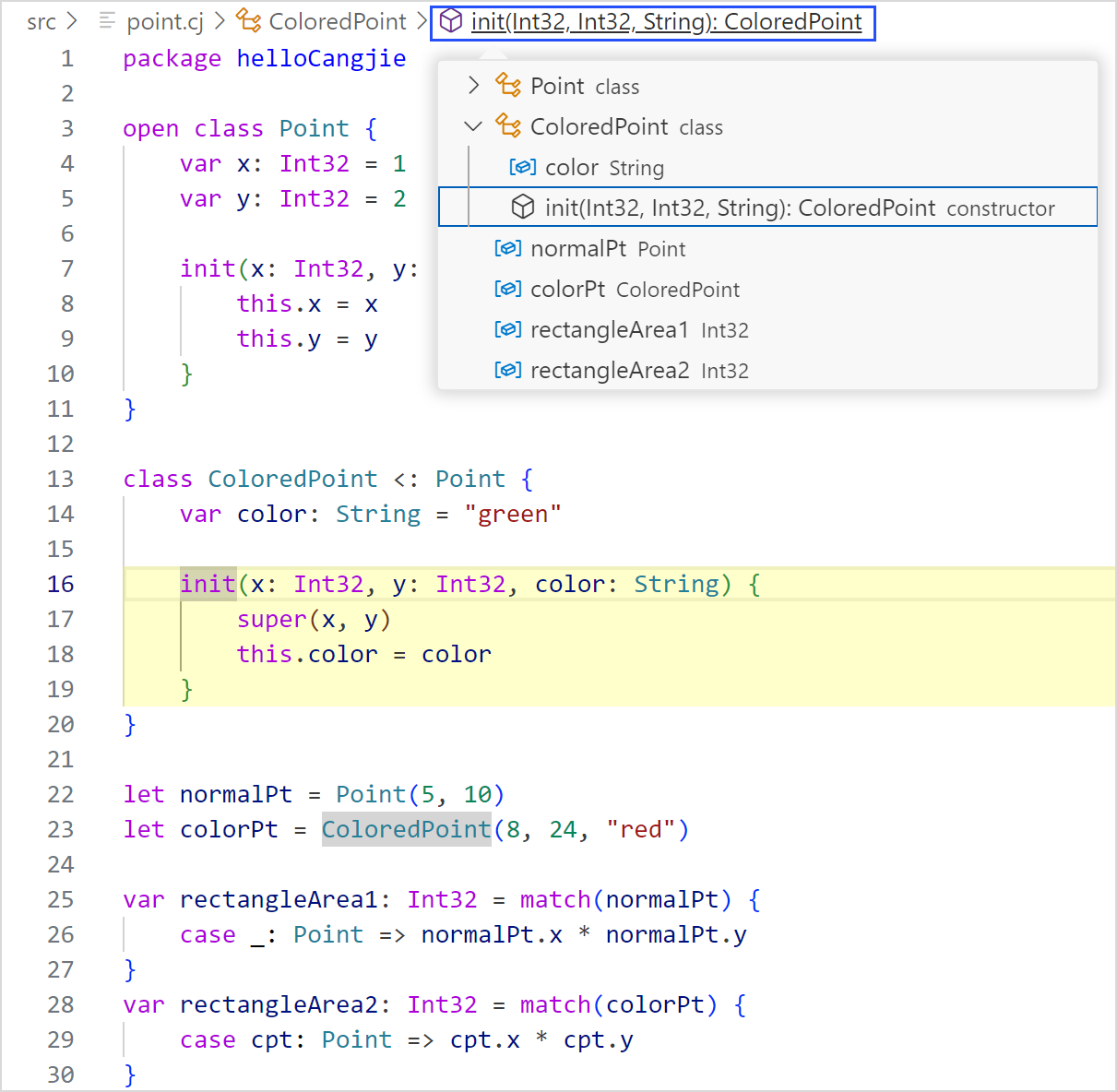
Currently, the following types support breadcrumb navigation: class, interface, enum, struct, typealias, toplevel function, toplevel variable, prop, enum constructor, member function, and member variable.
Signature Help
VSCode triggers signature help when a left parenthesis and a comma are entered. The prompt box keeps moving with the cursor as long as it is within the function parameter range. (Signature help can coexist with the autocompletion function.) As shown in the following figure, you can view the parameter information of the current function and the highlight effect of the current function location parameter.

Type Hierarchy Display
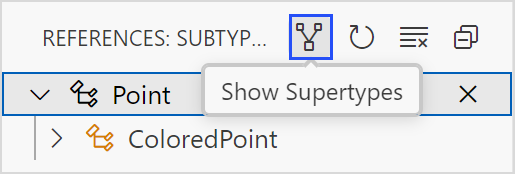
You can open the .cj file in the Cangjie project in VSCode, right-click the custom name to be viewed, and choose Show Type Hierarchy from the shortcut menu. The type hierarchy is displayed on the left. By default, the object type is the parent class of all classes and is not displayed in this function.
Currently, the following types support hierarchy display: class, interface, enum, and struct.
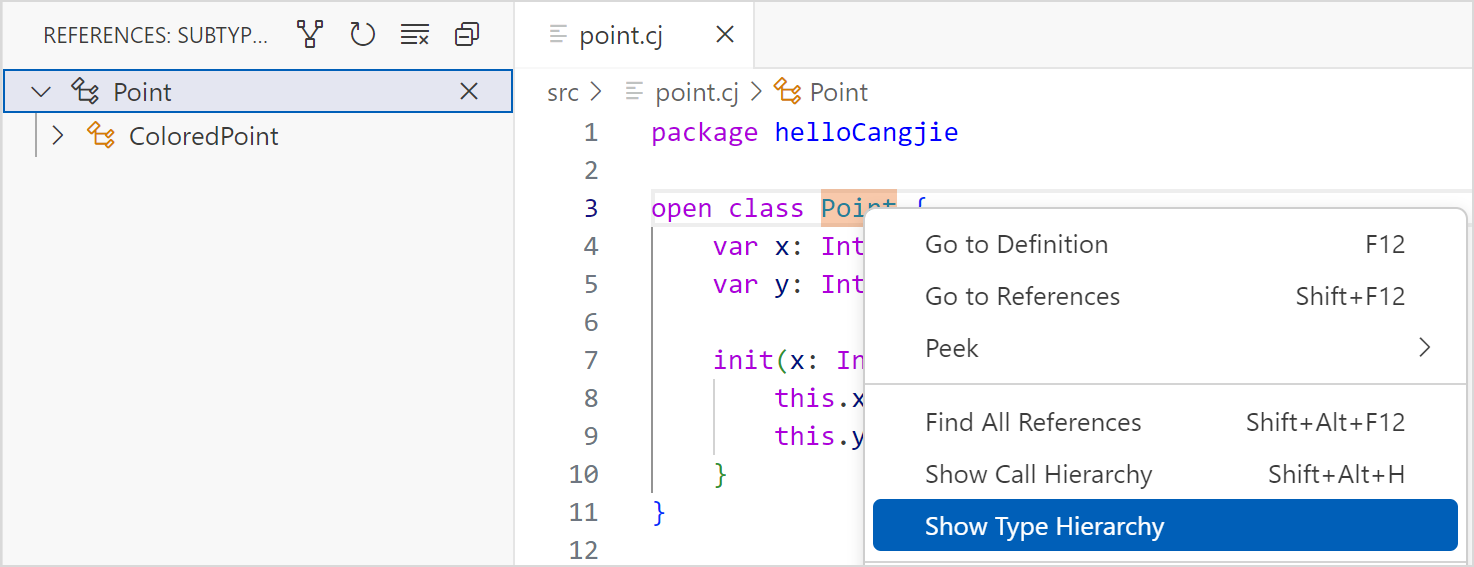
You can click the icon marked in the figure to switch between the subclass and parent class.
Call Type Hierarchy
You can open the .cj file in the Cangjie project in VSCode, right-click the function name, and choose Show Call Hierarchy from the shortcut menu. The call type hierarchy of the function is displayed on the left.
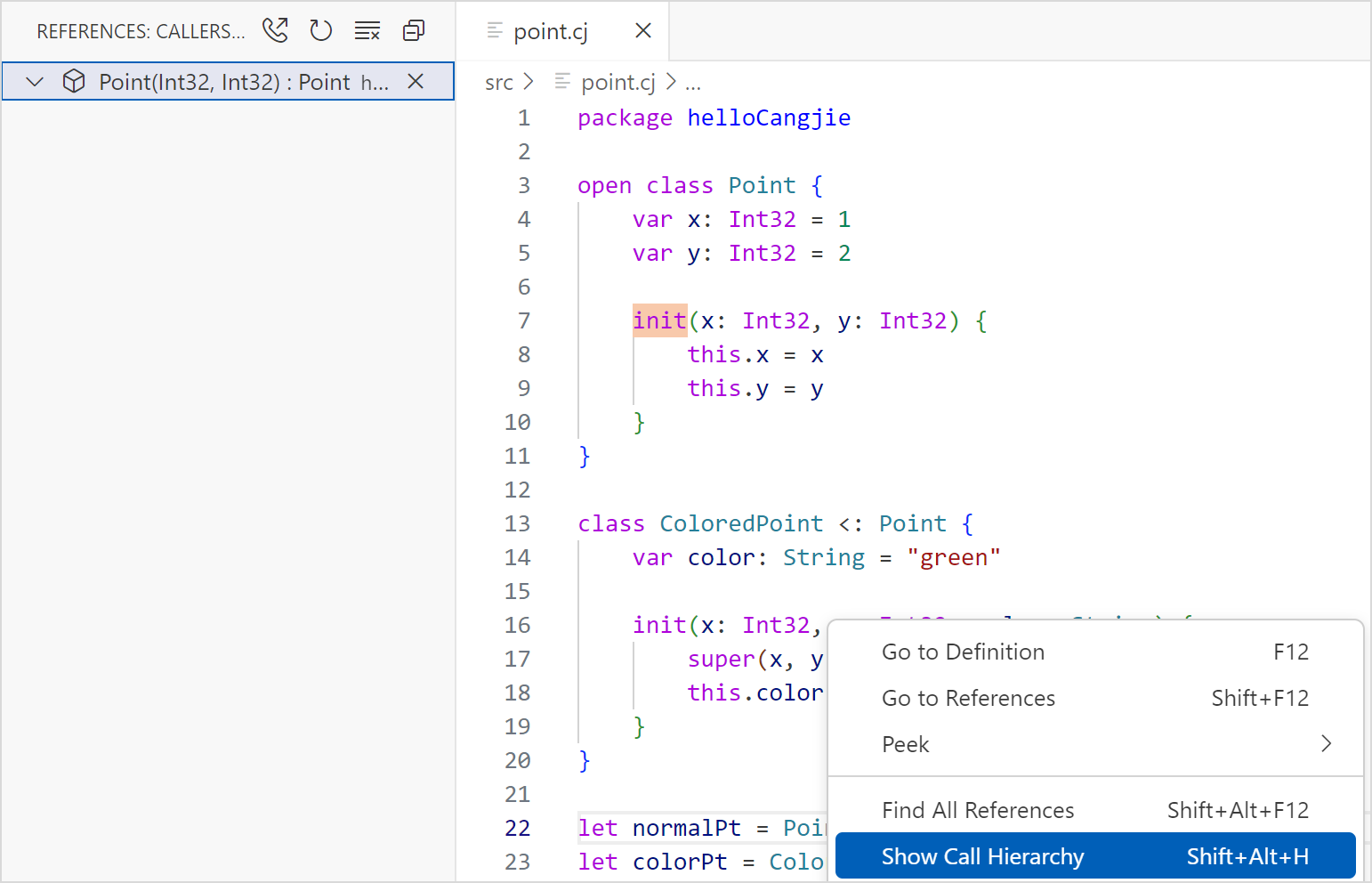
You can click the marked icon to switch between the calling function and the called function.