Installation Guide
Downloading Software
Download the VSCode installation package from the VSCode website. It is advisable to install version 1.67 or later. The Cangjie VSCode plug-in has been released on the VSCode extension marketplace. To install it, visit Cangjie Download Center and click View Now under Cangjie vscode plugin to be directed to the VSCode extension marketplace. You can also directly install it from the internal Extensions page within VSCode.
| Download Item | Description | Required |
|---|---|---|
| Visual Studio Code | IDE | Yes |
Installing VSCode
Windows
Run the VSCode installation file (for example, VSCodeUserSetup-x64.exe) and select a path as prompted to install VSCode.
Linux
Local installation
Follow the instructions provided on the VSCode website to install VSCode on your preferred Linux distribution.
Remote installation
-
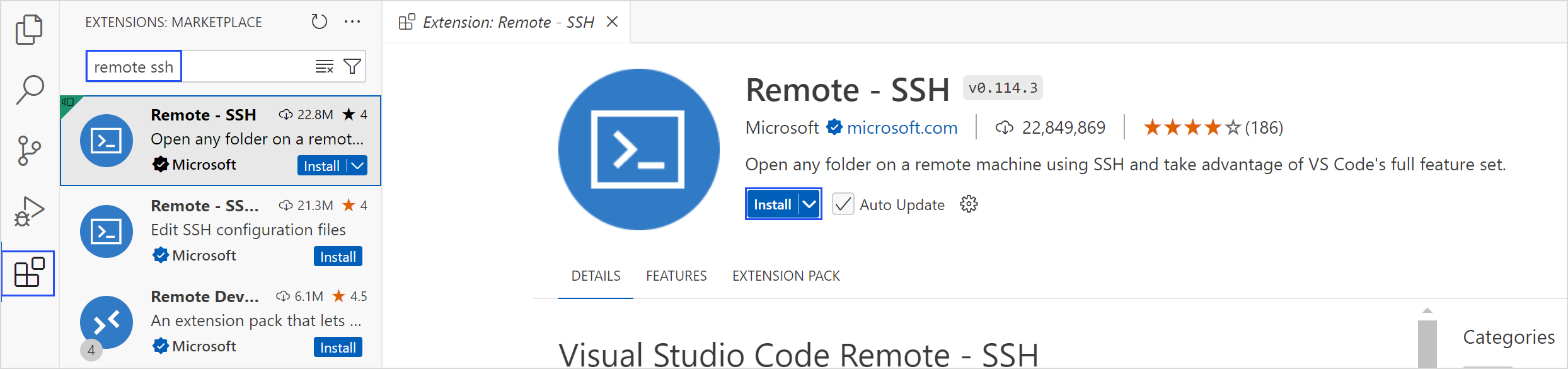
Search for Remote - SSH in VSCode and click Install.
-
If you use Remote - SSH for remote work, VSCode automatically installs the server on the remote host. Currently, linux_arm64 supports only the Remote - SSH mode.
macOS
Decompress the downloaded package (for example, VSCode-darwin-universal.zip) and drag the decompressed .app file to the application to complete the VSCode installation.
Installing the Cangjie Plug-in
The Cangjie plug-in can be installed directly from the VSCode extension marketplace.
-
Start VSCode.
-
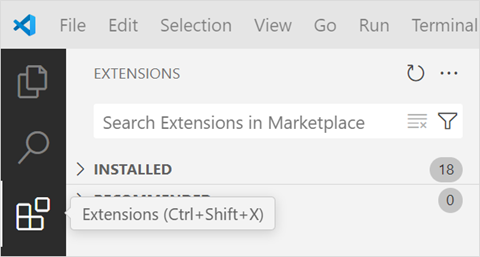
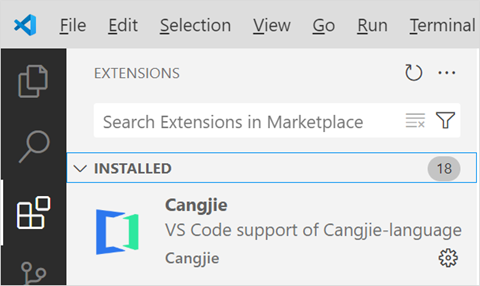
Click the icon button Extensions on the left toolbar (or press Ctrl+Shift+X or Cmd+Shift+X) to access the extension marketplace.
-
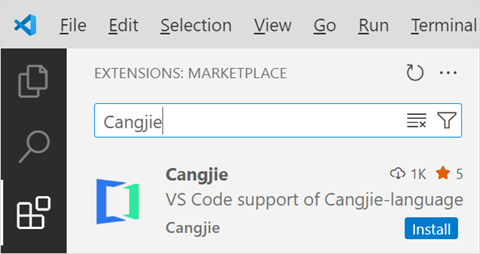
Enter the keyword Cangjie in the search box to search for the Cangjie plug-in. Then click Install to install it.
-
To verify the installation, check the INSTALLED directory.
Installing the Cangjie SDK
The Cangjie SDK offers the Cangjie compilation commands (cjc), Cangjie Package Manager (CJPM), and Cangjie Formatter (CJFMT). Once you have correctly installed and configured the Cangjie SDK, you can utilize various features such as project management, compilation and building, formatting, static check, and coverage statistics. You can download the SDK in either of the following ways:
- Offline manual installation. Download the SDK installation package from the official website and install the Cangjie SDK on the localhost.
- Installation using VSCode. The Cangjie plug-in provides the functions of downloading and updating the latest Cangjie SDK. You can download the latest Cangjie SDK and deploy it in the local environment in VSCode.
Downloading SDK
Visit Cangjie Download Center and download the Cangjie SDK.
Windows
For Windows, download cangjie-sdk-windows-x64-x.y.z.exe or cangjie-sdk-windows-x64-x.y.z.zip.
Download the SDK and save it to the localhost. If the .exe file is downloaded, run the file, select the installation path as prompted, and record the path. If the .zip file is downloaded, decompress the file and record the storage path.
The directory structure of the SDK folder is as follows:
cangjie

├── bin

├── lib

├── modules

├── runtime

├── third_party

├── tools

├── envsetup.bat

├── envsetup.ps1

└── envsetup.sh
Linux
For Linux_x64, download cangjie-sdk-linux-x64-x.y.z.tar.gz.
For Linux_AArch64, download cangjie-sdk-linux-aarch64-x.y.z.tar.gz.
Download the SDK, save it to the localhost, and record the storage path. The directory structure is as follows:
cangjie

├── bin

├── include

├── lib

├── modules

├── runtime

├── third_party

├── tools

└── envsetup.sh
macOS
For macOS_x86_64, download cangjie-sdk-mac-x64-x.y.z.tar.gz.
For macOS_AArch64, download cangjie-sdk-mac-aarch64-x.y.z.tar.gz.
Download the SDK, save it to the localhost, and record the storage path. The directory structure is as follows:
cangjie

├── bin

├── lib

├── modules

├── runtime

├── third_party

├── tools

└── envsetup.sh
Setting SDK Path
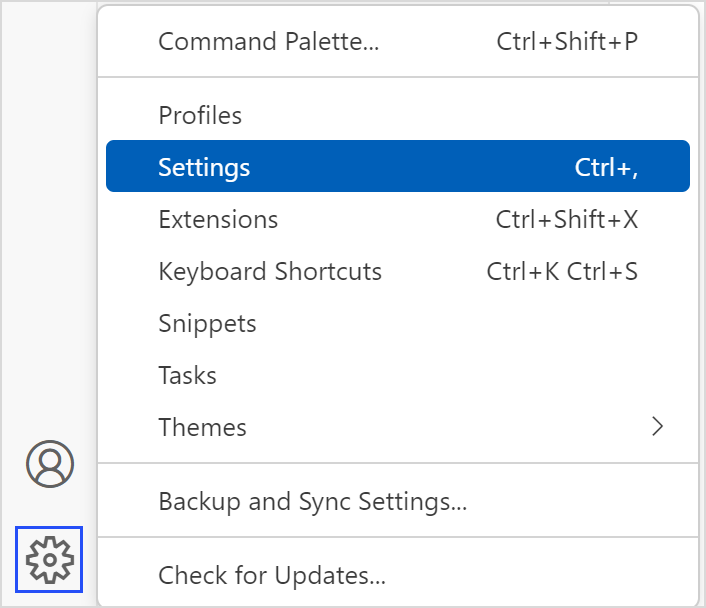
After the Cangjie plug-in is installed, you need to configure the SDK path. Click the gear icon in the lower left corner and select Settings.
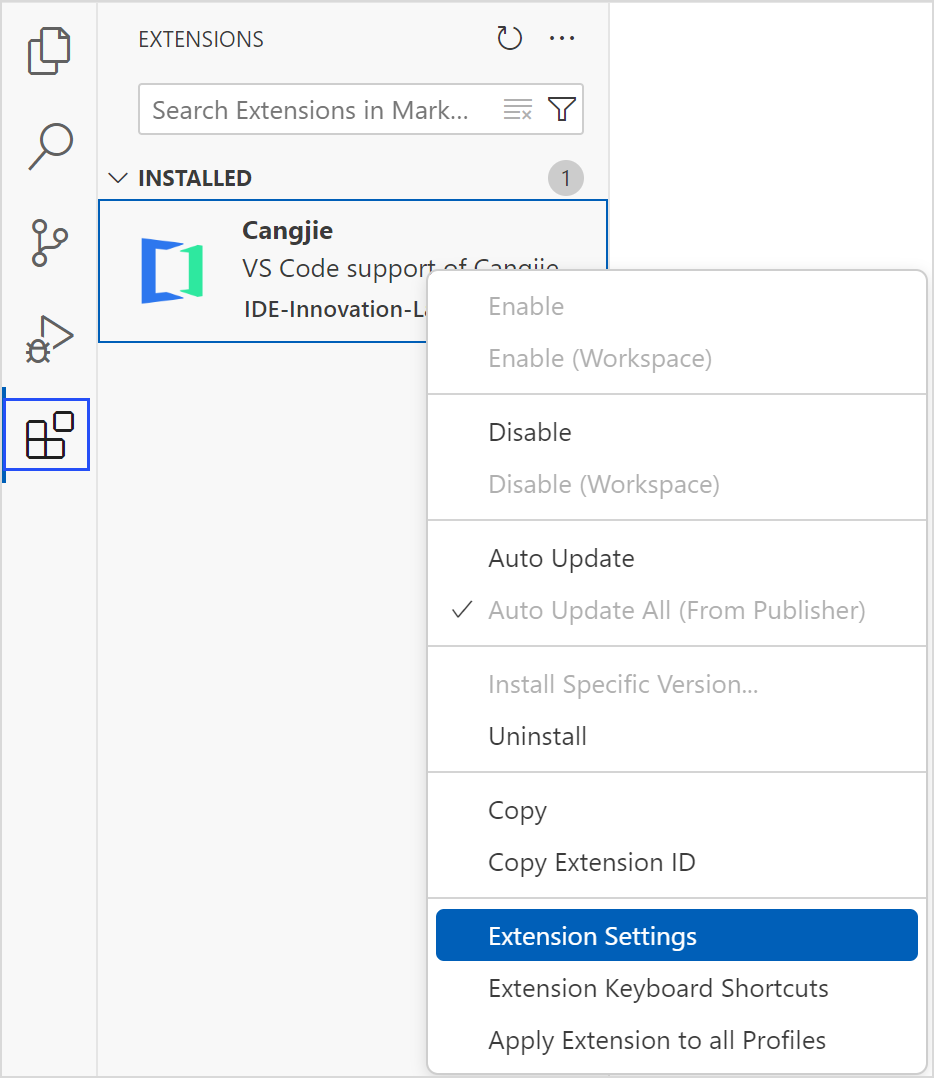
Alternatively, right-click the plug-in and choose Extension Settings from the shortcut menu. The Settings page is displayed.
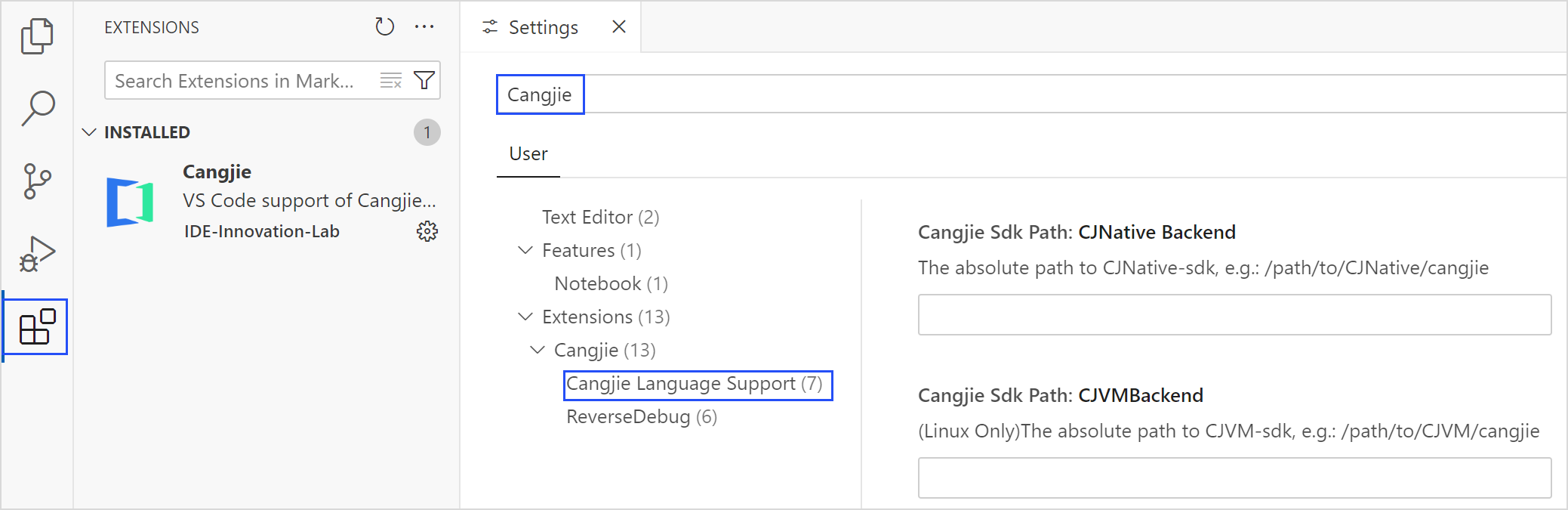
Enter Cangjie in the search box and select Cangjie Language Support on the sidebar.
Configuring the CJNative Backend
-
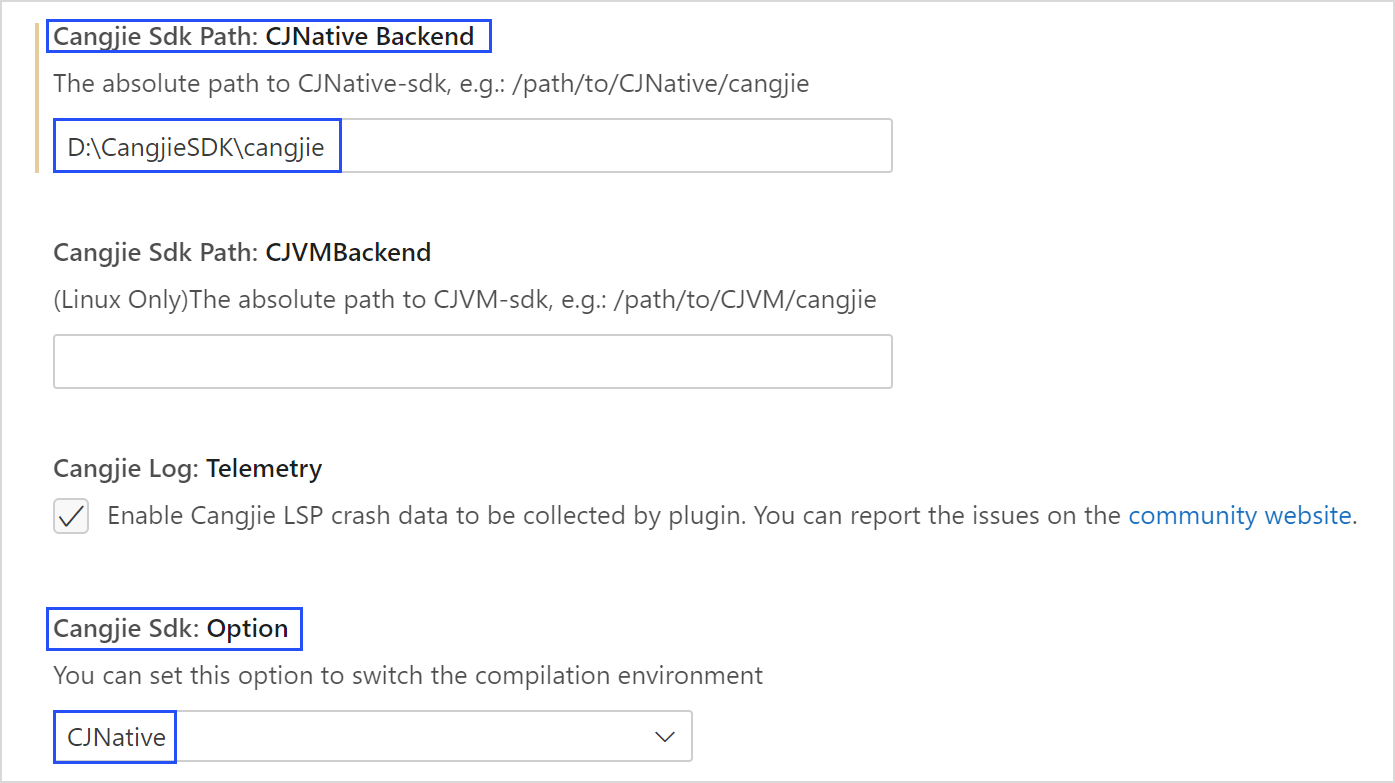
Find Cangjie Sdk: Option. Select CJNative (the default option) as the backend type.
-
Find Cangjie Sdk Path: CJNative Backend. Enter the absolute path of the CJNative backend SDK folder.
-
Restart VSCode for the modification to take effect.
Validating the Installation
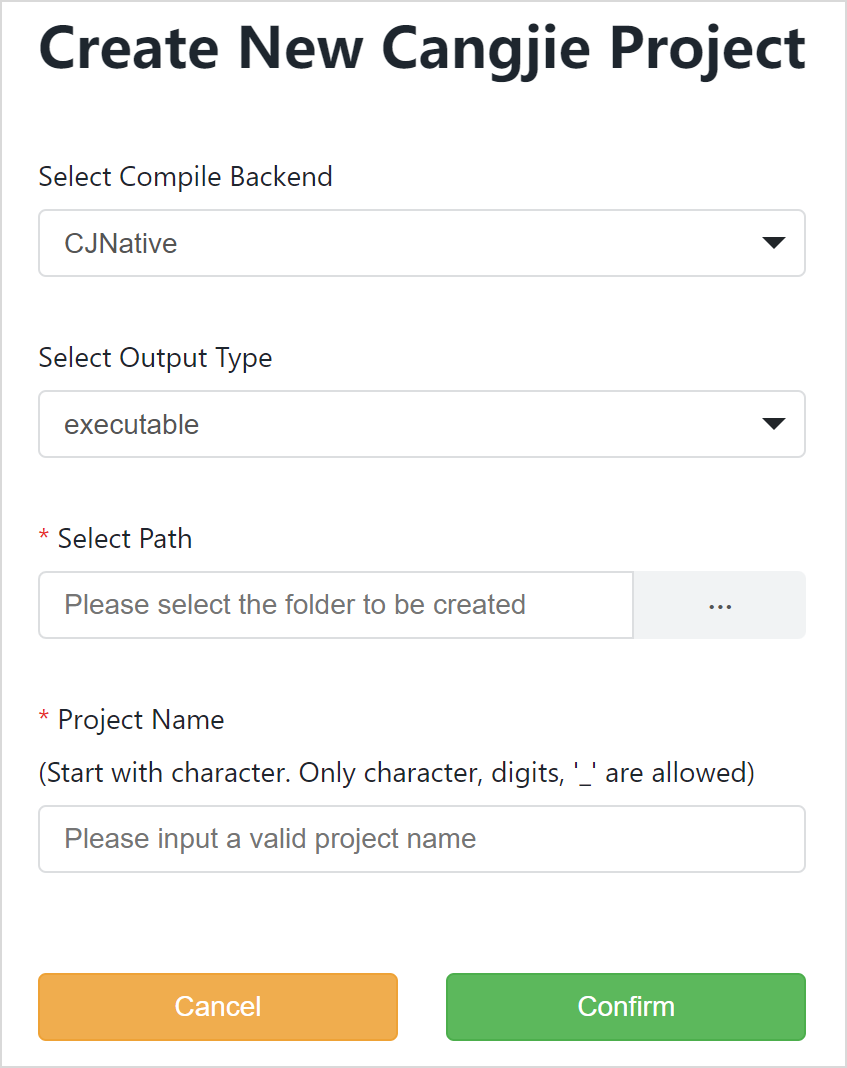
Open the VSCode command palette by pressing Ctrl + Shift + P (or Command + Shift + P in macOS), and select cangjie: Create Cangjie Project View.
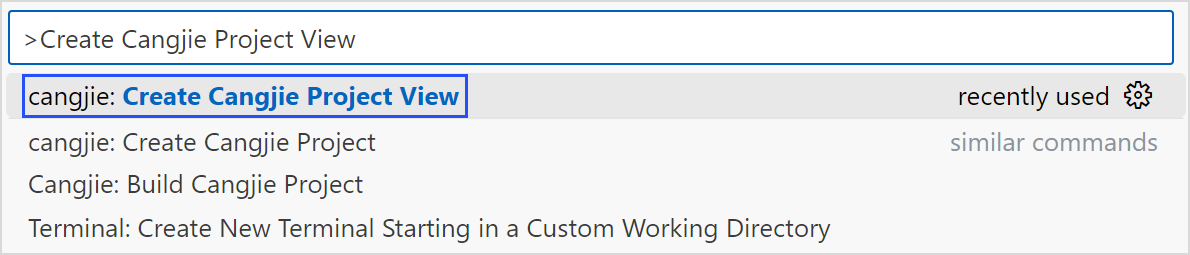
If the Create New Cangjie Project page is displayed, the Cangjie SDK is successfully installed.